HOW IT WORKS

A better way to work with numbers.

Three steps. No manual retyping.
STEP 01

Capture

Press Alt+Q and draw around the amounts you need. The selected region is processed locally using OCR.
STEP 02

Review and total

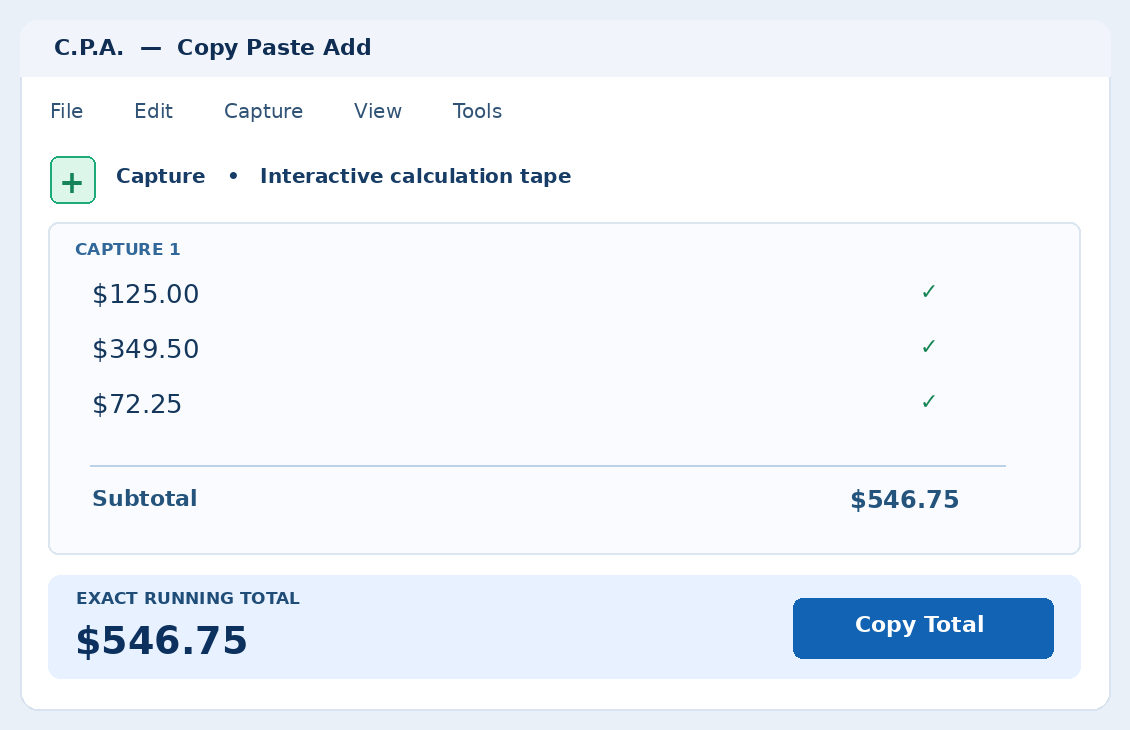
C.P.A. populates an editable tape. Check purple warnings, correct any values, and see the updated total.
STEP 03

Copy or export

Copy a total, copy raw values as an Excel column, copy CSV, or save and print a formatted calculation tape.
MULTIPLE SNIPS. MULTIPLE SOURCES.

Grab a little here. A little there.
Add it all together.

Capture a set of numbers from a PDF, grab another from a website, then add more from a spreadsheet or app. Every snip joins the same running calculation in Mini or Full Mode.
01 · PDF / FINANCIAL REPORT

Invoice amounts

$420.00
$82.50
$16.00
02 · WEBSITE

Online price list

24.99, 12.75
03 · EXCEL / APP

Scattered cells

120     180
ONE LIVE CALCULATION

One running total

856.24
All three captures stay in the same session.
Works across visible Windows applications. Recognition may vary with image quality; double-check flagged values before relying on totals.
PRINT / SAVE YOUR WORK

A real adding-machine tape. Without the paper roll.

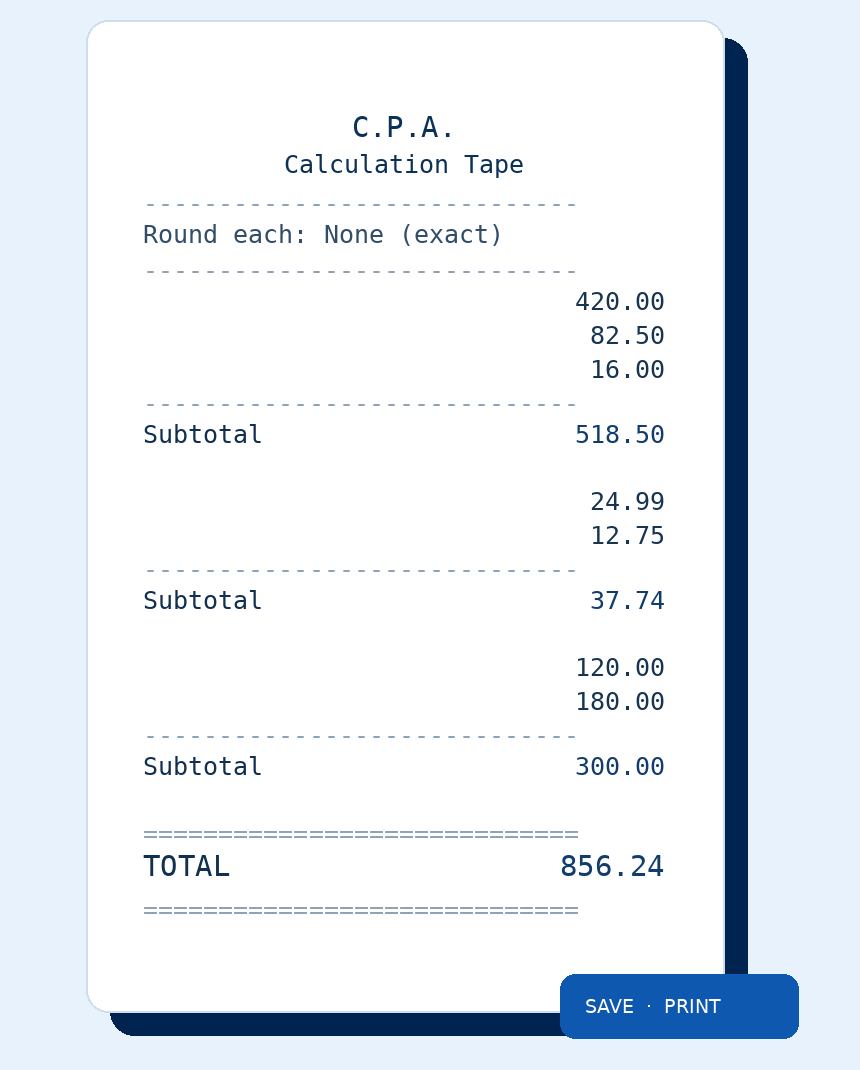
Keep a running tally across many captures, review each amount, and produce a clean traditional calculation tape when you are done. Print it or save it as a PDF for your records.
Optional per-capture subtotals, a final grand total, and a customizable three-line tape header. Printed tapes omit on-screen snip IDs for a cleaner result.
Illustrative printed tape with three source groups and a final total.

Designed for the numbers you actually encounter.

Expense reports, worksheets, PDFs, purchasing records, scanned receipts, web pages, and numerical lists can all require different handling. C.P.A. gives you a consistent way to capture, inspect, and transfer values.
Review matters: OCR can misread or combine amounts, especially in low-quality scans or ambiguous formats. Always verify results before relying on financial totals.
FOR ACCOUNTING & FINANCE

Scattered values become a column.

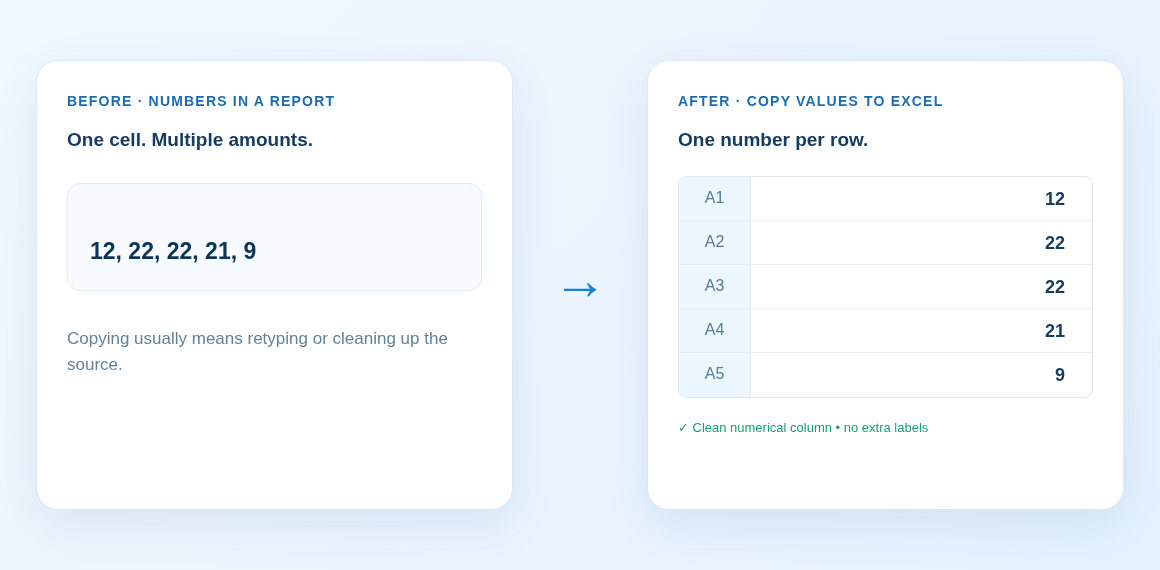
Copy Values outputs one raw numerical value per line—ready to paste into Excel.
SOURCE

12, 22, 22, 21, 9

Values may start in one cell or appear across a financial report.
RESULT

12
22
22
21
9

Copy them as a clean numerical column, after verifying any ambiguous OCR values.
COPY VALUES

The same numbers, ready for Excel.

Values copy as raw numeric lines, not as a formatted receipt.
REAL ACCOUNTING WORKFLOW

From a sample tax form to Excel-ready numbers.

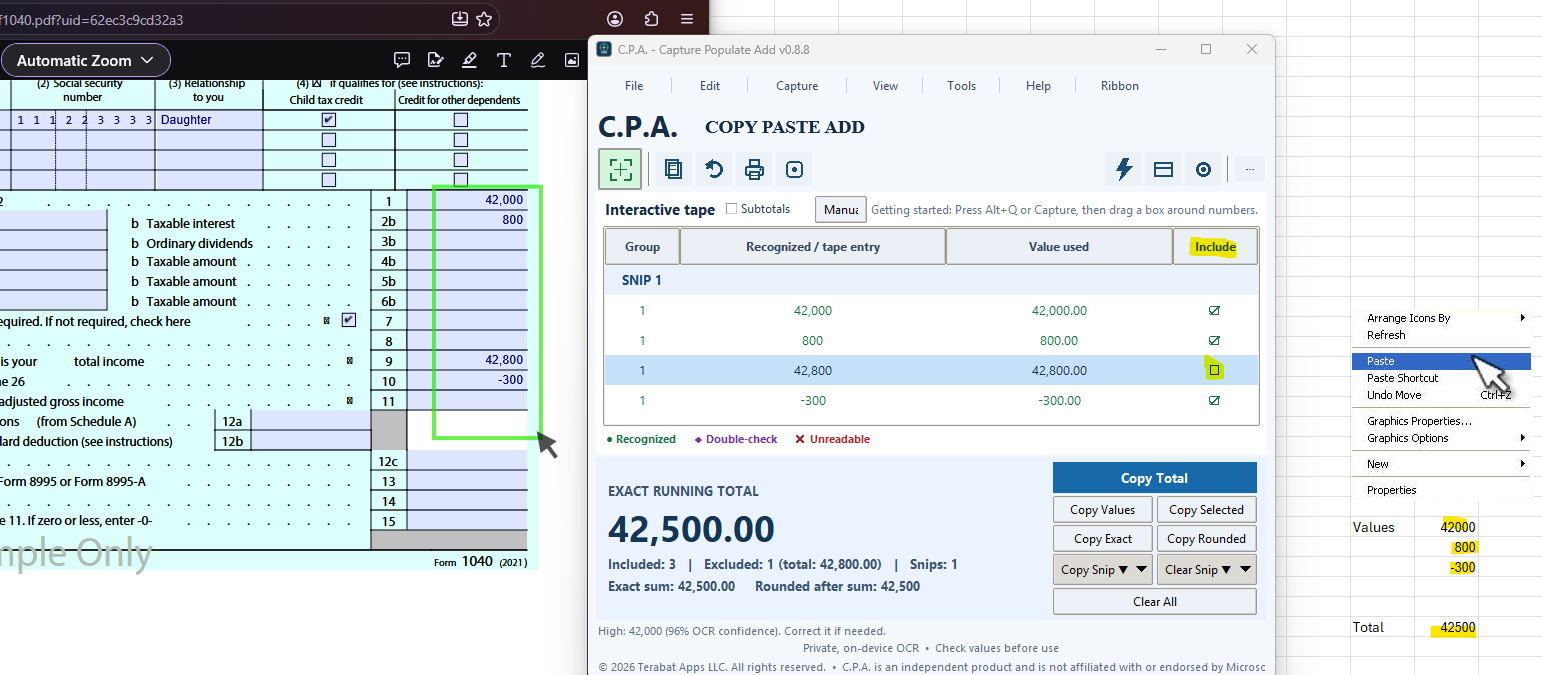
C.P.A. captures figures from a financial document, lets you exclude an existing total, and copies only the values you need into an Excel column.
01   /   SOURCE DOCUMENT

Sample Form 1040 figures

Illustrative amounts from a tax form
Wages

42,000

Taxable interest

800

Total income

42,800

Adjustment

−300

An already-calculated total appears alongside the source amounts.
→
02   /   REVIEW IN C.P.A.

Capture. Check. Exclude.

Interactive tape · 1 capture
✓   Wages

42,000.00

✓   Interest

800.00

⊘   Existing subtotal

42,800.00

✓   Adjustment

−300.00

RUNNING TOTAL

42,500.00

Exclude the existing subtotal to avoid double-counting.
→
03   /   PASTE INTO EXCEL

Clean numbers. No retyping.

Copy Values → one amount per row
A1

42000

A2

800

A3

-300

EXCEL TOTAL

42,500.00

Only included values are copied. No labels, currency symbols or subtotals.
SEE THE ACTUAL WORKFLOW

Capture a sample financial form, exclude an existing subtotal, and paste into Excel.

Actual C.P.A. development-build screenshot using a sample tax form. The existing $42,800 subtotal is excluded; only 42,000, 800, and -300 are copied into Excel. Branding and interface details may change before release. Select the image to view it larger.
Illustrative figures based on a sample tax-form workflow. Review OCR results before use. C.P.A. is not affiliated with or endorsed by the IRS and does not provide tax advice.